
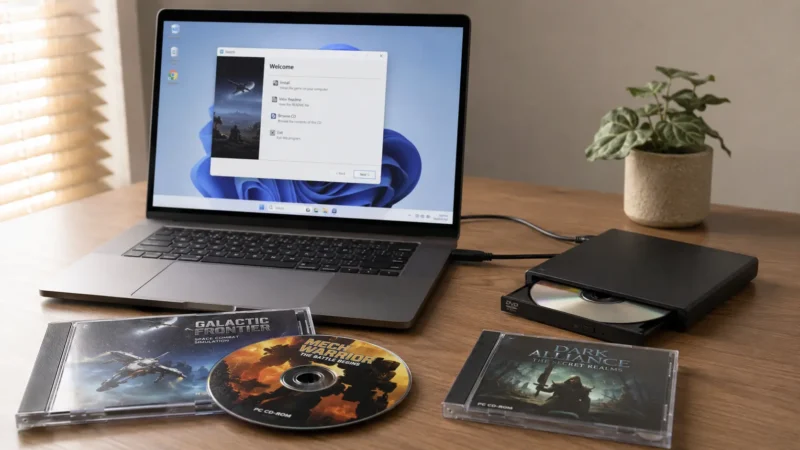
Somewhere in your place there is a spindle of jewel cases. Maybe a shoebox. Mine lived in a drawer under the router for years, a stack of classic Blizzard games mostly, the kind you don’t really let go of. Every time I opened it I told myself I’d get around to playing them again. Then I’d look at my laptop, remember it had no disc drive, and quietly close the drawer.
If you’ve read the usual “just rip an ISO and use compatibility mode” guides, you already know they stop right where the real trouble starts. They get you to the install screen and then wave goodbye. The problem is that disc-based games from roughly 1998 to 2008 break in very specific ways on Windows 11, and most of those ways have nothing to do with compatibility mode. So this is the version that keeps going. Every wall you can hit, and what actually gets you past it.
The honest shortcut first: check GOG and Steam
Before the elbow grease, one thing worth saying out loud. If the game you want is sold on GOG or Steam, buying it there is almost always less hassle than fighting your own disc. These re-releases come pre-patched, the copy protection is stripped out, and the awkward stuff (DOSBox, graphics wrappers, resolution fixes) is already bundled. Old titles are usually a few euros, often cheaper than the USB drive you’d buy to read the disc.
That’s not a cop-out. It’s the right call for a lot of people, and it’s worth doing the math before you commit a Saturday. If you want a sense of which store handles classic games better, I went deep on that in Steam vs GOG for classic PC games. And once you’ve got a clean, DRM-free copy, it travels with you, so you can play it on a Steam Deck just as easily as on the desktop.
But sometimes the game isn’t sold anywhere anymore. Or you already own it and you’re stubborn about it, like me. So let’s do this properly.
Step 1: Getting the disc to read at all
Modern PCs and laptops don’t ship with optical drives. That part is true. The fix is an external USB DVD drive, the cheap kind, around 20 euros, plug-and-play on Windows 11. Pretty much any of them reads CDs and DVDs fine, so you don’t need to overthink the model.
One correction to something the bigger sites keep repeating: internal optical drives have used SATA for well over a decade, not the old IDE ribbon cables. So if you’ve got an old desktop tower with a drive in it, connecting it to a modern motherboard is usually trivial. The real obstacle is finding a case with a 5.25-inch bay anymore, not the cable.
Before you trust anything to the disc, hold it up to a bright light, label side toward you. You’re checking for disc rot, which shows up as tiny pinholes where the reflective layer has oxidized. If you see little stars of light coming through, those sectors are gone and no drive will recover them. Better to know now than halfway through an install.
Step 2: Make a disc image, and pick the right format
Don’t play off the physical disc every time. The spinning wears down both the disc and the drive motor, and these discs aren’t getting any younger. Make an image, store it on your SSD, and mount that instead. Faster loads, and the original goes back in the drawer safe.
Here’s the part the basic guides get lazy about. There are two formats, and the difference matters:
- ISO is fine for games that are pure data.
- BIN/CUE is what you need for “mixed mode” discs that also have CD audio tracks (Redbook audio). Loads of late-90s games put the soundtrack on the disc as actual audio tracks. Rip those to a flat ISO and the game runs dead silent. The BIN/CUE pair keeps the audio tracks and their timing intact.
For making and mounting images, a quick warning that could save your install. You’ll see DAEMON Tools and Alcohol 120% recommended everywhere. The programs are fine, but they install a kernel-level driver called SPTD, the company behind it is essentially gone, and that driver is a genuine pain to remove cleanly when you upgrade Windows later. Skip the headache. WinCDEmu is free, open-source, has a properly signed driver, and mounts ISO and BIN/CUE without any of that risk. For ripping, ImgBurn still does the job; set the read speed low so an old or slightly scratched disc copies cleanly.
Important note: When downloading ImgBurn, make sure to decline any bundled third-party software during setup. Alternatively, you could use CDBurnerXP or InfraRecorder as clean, open-source alternatives for ripping.
Worth knowing: Windows 11 can mount a plain ISO by itself, just double-click it. But it can’t mount BIN/CUE, which is exactly the format you need for the music. So you’ll want WinCDEmu anyway.
Step 3: The installer won’t even run
You mount the image, double-click setup, and Windows throws “unsupported 16-bit application” or “This program cannot be run in DOS mode.” This one confuses people because the game itself might be perfectly fine. It’s the installer that’s 16-bit.
Why it happens: 64-bit Windows dropped the component that runs 16-bit code (NTVDM), and Windows 11 killed it off entirely, since there’s no 32-bit edition at all anymore. A 16-bit setup.exe simply has nothing to run on.
You’ve got a few ways through:
- WineVDM (also called OTVDM). A free, open-source layer that runs 16-bit Windows programs on 64-bit Windows. Install it, then the old setup.exe just works. This is the cleanest fix and it’s what I reach for first.
- Install the game in a virtual machine with an older Windows, then copy the installed folder over. More work, covered below.
- Manual install. Plenty of older games don’t really “install” much; the disc copies files to a folder and writes a registry key. You can often copy the game folder straight off the disc and run the executable.
And a small thing that fixes a surprising number of problems: don’t install into C:\Program Files. The permissions and the path with a space in it trip up old games. Use a simple path like C:\Games\YourGame. Saves you a whole category of weird errors later.
Step 4: It installed fine but refuses to launch
This is the big one. The wall nobody warns you about. The game installs without a complaint, you double-click it, and you get hit with “Please log in with administrator privileges and try again.” You are the administrator. You run it as admin anyway. Still nothing. No crash, no error, just nothing.
What’s actually going on: the game uses SafeDisc or certain versions of SecuROM, the disc-based copy protection that was everywhere from about 1999 to 2008. The wave of mid-2000s console-to-PC ports was especially loaded with it. SafeDisc relied on a Windows driver called secdrv.sys to check that a real disc was in the drive. In 2015, Microsoft disabled that driver in a security update (MS15-097, also known as KB3086255) because it had a serious kernel-level vulnerability. Windows 10 and 11 don’t just disable it, they ship without the file entirely.
So the game asks Windows to load its disc check, the driver isn’t there, and the launch silently dies. Your disc is fine. Your install is fine. The OS just removed the thing the game depends on.
Can you put the driver back? Technically people do, but I’d tell you not to. It was pulled for a real security reason, the flaw lets malware get kernel access, and Windows 11 blocks the unsigned driver anyway. Re-enabling a known hole to play one game isn’t a trade I’d make. The better routes:
- Check the publisher for an official patch. A lot of studios released “no-DVD” updates years ago precisely because the DRM became a liability. EA and Ubisoft patched several of their own titles. This is the cleanest fix when it exists.
- Buy the GOG version, which has the DRM removed at the source. Back to the honest shortcut.
- A community no-CD patch. This replaces the protected executable with one that skips the disc check. Here’s the honest part: for a game you legally own, this sits in a legal gray area that varies by country, and I’m not going to point you at sketchy download sites full of malware. PCGamingWiki is the sane place to find out, per game, whether an official patch exists and how the protection behaves. Start there before anything else.
How do you even know if your game uses SafeDisc? Look inside the installed folder or the disc for files like drvmgt.dll or a secdrv.sys. If they’re there, that’s your culprit. Plenty of games people actually want to replay land here. An underrated RTS like Tzar or Celtic Kings from that era is exactly the kind of disc that installs clean and then quietly refuses to start.
Step 5: Windows flags the game as a virus
If you’ve ever browsed forums for fixes, you’ll know why some gamers say that old DRM feels like malware. This is almost always a false positive. The old DRM wrappers and the executable packers these games used look, to a modern scanner, a lot like the obfuscation that real malware uses. That doesn’t make it malware. If the file came off your own original disc, you can add an exclusion for the game folder in Windows Security and move on. If it came off the internet, be more careful and verify the source first, because that’s exactly the scenario where it might actually be malware.
Step 6: It runs, but it looks broken
You’re in. The game launches. And the menus are a postage stamp in the corner, or the textures are a mess, or it’s locked at 640×480 on your 4K monitor.
Compatibility mode handles the basics. Right-click the executable, Properties, Compatibility tab. Try Windows XP (Service Pack 3) mode, tick “Run this program as an administrator,” and under “Change high DPI settings” override the scaling so the game doesn’t get blown up by Windows. For really old titles, “Reduced color mode” (256 or 16-bit) clears up a lot of garbled menus.
When the graphics themselves are corrupted, the tool you want is dgVoodoo 2. It takes the obsolete graphics calls these games make (3dfx Glide, or DirectX versions 1 through 7) and translates them into modern DirectX that your GPU understands. It fixes texture corruption, and as a bonus it lets you upscale old games to a proper resolution. Drop its files into the game folder, point it at the right API, done.
For resolution and widescreen specifically, most popular classics have a fan-made fix, and again PCGamingWiki lists them per title. And remember Step 2: if the music is missing, you probably ripped a mixed-mode disc to a flat ISO. Re-rip it as BIN/CUE and the soundtrack comes back.
Step 7: The nuclear option that just works
When a game fights you on every single point, stop fighting. Build it the environment it expects. A virtual machine running a real install of Windows 98 or XP gives you near-perfect compatibility, because as far as the game knows, it’s 2001 and nothing has changed. The same sort of Pentium-era machine it was written for. Tools like 86Box, PCem, or VirtualBox will get you there.
It’s more setup up front, but for the stubborn stuff it’s the most reliable answer by a distance. If you want the lighter-touch version of this for slightly newer games, that’s basically what running old Windows 95, 98, and XP games on Windows 11 is about. And if the disc you’re holding is a DOS game rather than a Windows one, you don’t want a VM at all, you want DOSBox, which I covered in how to play DOS games on Windows 11.
Quick reference
| Symptom | Likely cause | Fix |
|---|---|---|
| PC has no disc drive | No optical drive | Cheap external USB DVD drive |
| Installer won’t open, “16-bit” error | 16-bit installer, NTVDM removed | WineVDM, or install in a VM |
| Installed but won’t launch, asks for admin | SafeDisc / SecuROM (secdrv.sys removed) | Official patch, GOG version, or PCGamingWiki |
| Music missing | Mixed-mode disc ripped as ISO | Re-rip as BIN/CUE, mount with WinCDEmu |
| Flagged as a virus | DRM packer false positive | Add Defender exclusion (if from your own disc) |
| Tiny window or broken textures | Old graphics API | Compatibility mode + dgVoodoo 2 |
| Nothing works | Too old for modern Windows | Win98/XP virtual machine |
None of this is as quick as inserting a disc was in 2002. But the games are still in there, and once you’ve gone through the steps once or twice you start to recognize which wall you’re at just from the error. The drawer under the router is worth opening again.