
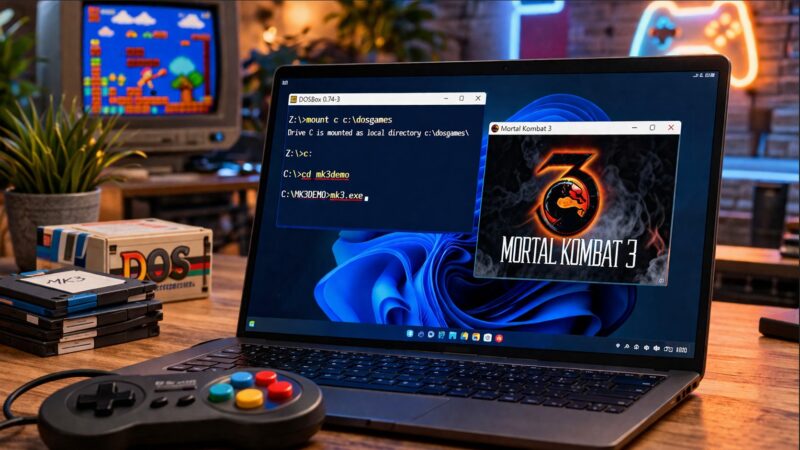
Many classic PC games were designed for older operating systems, which is why so many players still wonder how to play DOS games on Windows 11. The good news is that you can run them smoothly on Windows 11 using a simple tool called DOSBox. It emulates an old DOS environment, allowing you to install and play retro titles just like in the past. For games one generation newer, built for Windows rather than DOS, see how to run old Windows 95/98/XP games on Windows 11. Below is a clear, practical guide using a real example with Mortal Kombat 3.
What Is DOSBox And How To Use It
DOSBox is a free emulator that recreates the DOS operating system. Modern Windows versions cannot run DOS games directly, but DOSBox bridges that gap. It works through simple commands and gives you full control over your game environment.
Step 1: Install DOSBox
- Download DOSBox from the official site
- Install it like any regular Windows program
- Launch DOSBox after installation
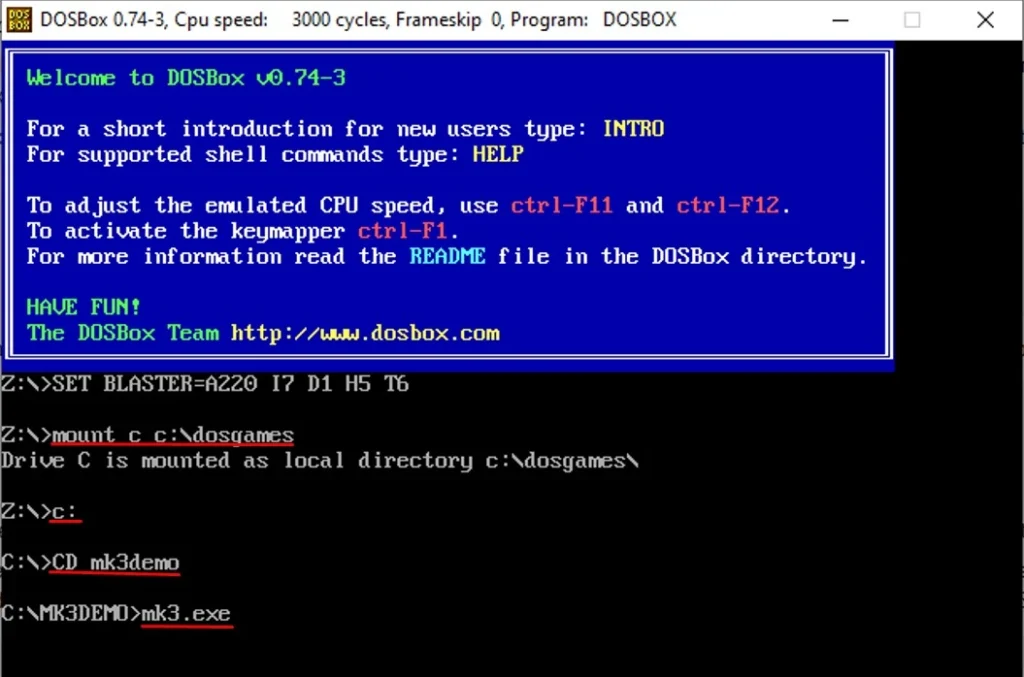
Once opened, you will see a command window similar to the one in the image above.
Step 2: Prepare Your Game Folder
Organize your DOS games in a clear folder structure. In this example, the setup looks like this:
- Main folder on your PC
C:\dosgames - Game folder
mk3demo - Game file
mk3.exe
This structure is important because DOSBox will use it to locate and run your game.
Step 3: Mount Your Folder in DOSBox
DOSBox does not automatically see your computer drives. You need to “mount” a folder manually.
Type the following command:
mount c c:\dosgames
This tells DOSBox to treat your dosgames folder as the C drive.
After that, switch to the C drive:
c:
Step 4: Navigate to the Game Folder
Now move into the Mortal Kombat 3 directory:
cd mk3demo
You are now inside the folder where the game is stored.
Step 5: Run the Game
Start the game with:
mk3.exe
If everything is set up correctly, the game will launch instantly.
Adjusting Performance
Some games may run too fast or too slow. DOSBox allows quick adjustments:
- Increase speed:
Ctrl + F12 - Decrease speed:
Ctrl + F11
You can tweak this until the gameplay feels right.
Useful Tips
- Always keep game folders simple and clean
- Avoid spaces in folder names if possible
- If a game has a setup file, run it before launching the main
.exe - If your DOS game is on a CD rather than loose files, you’ll want how to run old PC game discs on Windows 11 first.
- Sound issues can often be fixed by running a setup utility inside the game folder
Playing DOS Games in Your Browser
If you prefer a quicker option, some DOS games can be played directly in your browser. Websites like DOSGamesArchive offer playable versions without installation. This is useful for testing games or quick sessions, though performance and controls may be more limited compared to DOSBox.
Why Use DOSBox
DOSBox gives you full control and compatibility. Unlike browser versions, it allows you to:
- Save progress properly
- Adjust performance
- Use original game files
- Experience games as they were designed
Conclusion
Running DOS games on Windows 11 is straightforward once you understand the basics. For classic PC game fans, this opens up an entirely new world to explore. Just a small note from me: most DOS games fit more naturally into the retro category, but I still consider some of them, like MK3, timeless classics.