
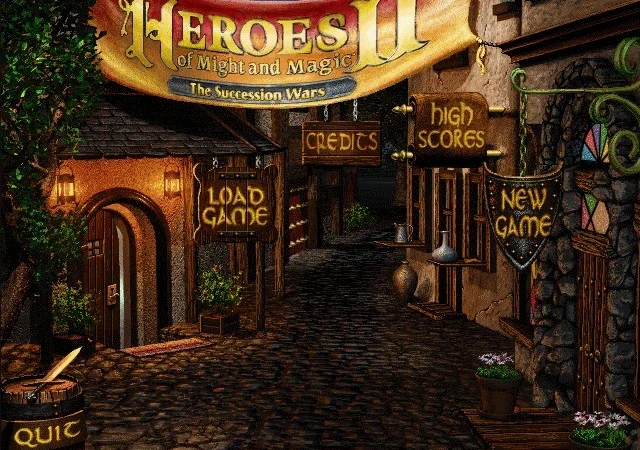
Yes, you can play Heroes of Might and Magic II on an Android phone, and you can actually set the whole thing up without touching a PC. You don’t need an emulator. You don’t need root access. You don’t need torrents either. The easiest free method uses fheroes2, an open-source recreation of the Heroes II engine, together with the freely available Heroes II demo files.
You can also add a large collection of custom maps, which makes the demo surprisingly playable even if you don’t own the full game. The whole setup takes around 20 to 30 minutes, and everything can be done directly on your phone.
What you need:
- Android 5.1 or newer
- Around 40 MB for the basic setup
- fheroes2
- ZArchiver
- Some Heroes II
.MP2maps
Let’s go through it.
What is fheroes2?
fheroes2 is not an emulator. It is a modern, open-source recreation of the original Heroes of Might and Magic II game engine.
The engine itself has been rewritten from scratch, but it still uses the original game’s graphics, sounds, maps, and other data files. That distinction is important. Installing fheroes2 does not give you a pirated copy of Heroes II. It gives you the engine needed to run the game. You still have to provide compatible Heroes II data files yourself.
For this guide, we’ll use the original free demo. Modern versions of fheroes2 also add several improvements that weren’t part of the 1996 release, including widescreen support, an improved battle AI, and a built-in map editor.
Is this legal?
Yes, fheroes2 is free open-source software released under the GPL. The Heroes II demo was officially released for free distribution by New World Computing back in the 1990s. So the setup in this guide combines a legal open-source engine with the freely distributed demo assets. There is no cracking involved.
What you need to download
You only need two apps.
1. fheroes2
Download it from Google Play: fheroes2 on Google Play. The app is free, has no ads, and has no in-app purchases. It can also download the Heroes II demo files for you, which makes this setup much easier.
2. ZArchiver
To enhance the demo experience, you will also need ZArchiver, which is available for free on Google Play. You might wonder why Android’s normal Files app isn’t enough. The problem is that we need to open a ZIP archive and add files directly into it without extracting the whole thing first. ZArchiver can do that. It can also open RAR archives, which is useful because many Heroes II map packs come in RAR format.
Step 1: Install fheroes2
Install fheroes2 from Google Play and open it. The first time you launch the app, it won’t have any Heroes II game data available. Instead of the normal game menu, you’ll see the fheroes2 setup screen. That’s exactly what we want. Don’t worry about configuring anything yet.
Step 2: Install ZArchiver
Now install ZArchiver from Google Play. We won’t need it permanently. Its main job is to prepare the Heroes II demo archive before we import it into fheroes2. Once everything is working, you can uninstall ZArchiver if you don’t normally use it.
Step 3: Download the Heroes II demo
Go back to fheroes2. On the setup screen, choose the option to download the demo version. The app will download the original Heroes II demo and save it as: h2demo.zip. You should find the file in your phone’s Download folder. The archive is roughly 21 MB.
Don’t extract it yet
This part is important. After downloading the demo, fheroes2 may immediately offer to extract the game assets.
Don’t do that yet.
First we’re going to add extra maps directly into h2demo.zip. Then we’ll let fheroes2 extract everything at once. Doing it this way makes adding custom maps much easier.
If the automatic download doesn’t work
If your version of fheroes2 doesn’t offer the demo download for some reason, you can download the same demo archive manually from the Internet Archive. The archive is called h2demo.zip and could be found here. Once it downloads, leave it in your Download folder.
Step 4: Download some Heroes II maps
This is where you can turn the small demo into something you can play for a long time. Heroes II has thousands of community-made maps available online. There is one important detail, though. Heroes II uses two common map formats:
| File type | Made for | Works with the demo? |
|---|---|---|
.MP2 | Heroes II: The Succession Wars | Yes |
.MX2 | The Price of Loyalty expansion | No |
For this setup, you want .MP2 files. The demo does not contain the assets from The Price of Loyalty expansion, so .MX2 maps generally won’t work.
Where to get Heroes II maps
One of the easiest places to start is: homm2.com Heroes II Maps. There is a roughly 10 MB map collection available there that contains plenty of standard Heroes II maps. For most people, that pack alone is more than enough. There is also a much larger Ultimate Maps collection if you want hundreds or even thousands of scenarios.
Another useful source is: Maps4Heroes. Maps4Heroes lets you filter for maps made for the original version of Heroes II, which makes finding compatible .MP2 files easier.
Download whichever map pack you want. It will normally end up in your phone’s Download folder.
Step 5: Extract the map pack
Open ZArchiver. Find the map pack you just downloaded. Tap it and choose Extract here, or extract it into a folder that you’ll remember. Now browse through the extracted folders to find the maps you want.
What you’re looking for are files ending in: .MP2. Map collections are often divided into folders by language, map size, author, or category. You don’t need to use all of them. Pick the maps you want, or simply grab a large batch if you don’t feel like sorting through everything.
Step 6: Add the maps to h2demo.zip
Now we get to the most important part of the guide. Open ZArchiver and find: h2demo.zip. Do not extract it. Instead, tap the archive and choose Open. ZArchiver will let you browse inside the ZIP as if it were a normal folder. Inside you should see something similar to:
h2demo.zip
├── DATA/
└── MAPS/
The DATA folder contains the game assets. The MAPS folder contains the game scenarios. Open the MAPS folder.
You should already see the demo’s original map inside.
Now use ZArchiver’s Add file button. It is usually the round document icon near the bottom-right corner.
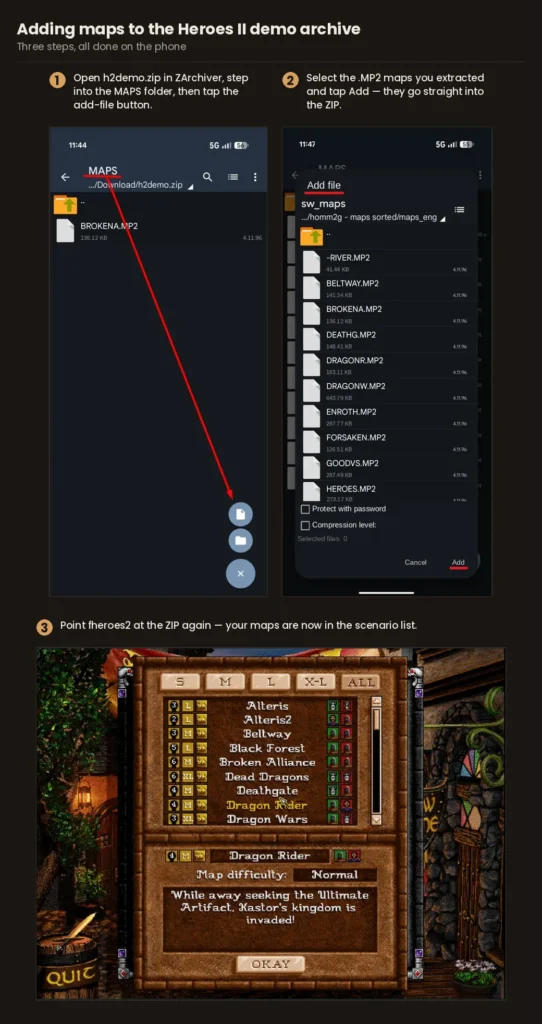
Browse to the .MP2 maps you extracted earlier. Select the maps you want and tap Add. ZArchiver will add those files directly into the MAPS folder inside h2demo.zip. You can add dozens or even hundreds of maps if you want.
Check the folder before continuing
This is probably the easiest part of the entire process to get wrong. Your .MP2 files must be inside: MAPS/. They should not be sitting next to the MAPS folder at the root of the ZIP. The correct structure should look like this:
h2demo.zip
├── DATA/
└── MAPS/
    ├── DEMO.MP2
    ├── YOURMAP1.MP2
    ├── YOURMAP2.MP2
    └── YOURMAP3.MP2
Before moving on, reopen the archive and make sure your custom maps are sitting next to the original demo map inside MAPS.
Step 7: Import everything into fheroes2
Now go back to fheroes2. Choose: Extract HoMM2 assets. Android’s file picker will open. Go to your Download folder and select: h2demo.zip. fheroes2 will now extract the game data into its own storage. The DATA folder becomes the game’s data directory. The MAPS folder becomes the scenario directory. Because we already placed our custom maps inside the archive, they get imported at the same time. After a few seconds, you should arrive at the Heroes II main menu. If you hear that familiar Heroes II music, you’re basically done.
Step 8: Start a game
From the main menu choose: New Game > Standard Game. Open the scenario list. Your added maps should now appear alongside the demo scenario. You’ll see the usual information such as:
- Map size
- Number of players
- Difficulty
- Map name
Pick one and start playing. That’s it. You now have Heroes of Might and Magic II running natively on your Android phone.
Clean up the files afterwards
Once you’ve confirmed that the game starts and your maps appear correctly, you can clean up the files you no longer need. You can safely delete:
- The original map pack you downloaded
- The folders created when you extracted the map pack
- ZArchiver, if you don’t normally use it
I would keep h2demo.zip. It is small, and you’ve now turned it into a useful backup containing both the demo data and your custom maps. If you reinstall the game later or move to another Android phone, you can use that same archive again.
How to add more maps later
Adding maps after the initial setup is slightly awkward because newer Android versions restrict access to app folders. Since Android 11, ordinary file managers have limited access to directories inside: Android/data/. That means you usually can’t just browse to the fheroes2 map directory and drop new maps into it. The easiest solution is to reuse the archive method.
Open your saved h2demo.zip in ZArchiver, add the new .MP2 files to its MAPS folder, and then run Extract HoMM2 assets again from fheroes2. Your saved games are stored separately, so importing the assets again should not remove them. Still, backing up any save you really care about is always a good idea. This is also why I’d recommend adding plenty of maps during the first setup. They take very little storage.
What are the limitations of using the demo?
The free demo method works surprisingly well, but it isn’t exactly the same as owning the full version of Heroes II. The original demo contains only the assets that were required for the demo itself. It doesn’t include every graphic, sound, artifact, map object, and other asset from the retail release. Because of that, some custom maps may not work correctly. A map could:
- Refuse to load
- Show missing graphics
- Display incorrect placeholders
- Require content that isn’t available in the demo
Unfortunately, there isn’t always an easy way to know beforehand. If one custom map doesn’t work, simply try another. There are so many Heroes II maps available that losing a few incompatible ones isn’t a major problem.
No Price of Loyalty content
The demo does not include The Price of Loyalty expansion.
That means you won’t have access to:
.MX2maps- The Price of Loyalty campaigns
- Expansion-specific artifacts
- Other expansion content
Stick to .MP2 maps made for the original Succession Wars release.
No CD soundtrack or intro videos
The retail version of Heroes II contains additional music and video files stored in folders such as: MUSIC and: ANIM. Those are not part of the standard demo package. The normal in-game music still works, so the game isn’t silent. You simply don’t get all of the multimedia content from the full CD release.
The campaigns are limited
The complete Heroes II campaigns require the retail game data. The demo method is therefore much better suited to Standard Game scenarios and custom maps. If that’s how you normally play Heroes II anyway, the limitation isn’t particularly serious.
However, if you want to support the game, you can always buy and download the official GOG version of Heroes II. It works perfectly with the fheroes2 app and includes all the content missing from the demo, so there is no need to download any additional maps.
What is Heroes II actually like on a phone?
Surprisingly good, but give yourself a few minutes to adjust. Heroes II was obviously designed around a mouse and a desktop monitor, not a touchscreen. Some buttons and map objects can feel small, especially on compact phones. The controls can also feel slightly unusual at first. After a couple of games, though, they start to make sense. If you have an Android tablet, Heroes II is even better there. The extra screen space makes the adventure map much easier to read.
Today, every brand seems to be launching a “classic” mode for its games. But why should we keep falling for it when we already have actual classic games that work perfectly on modern mobile devices, are free to play, and take up only a few megabytes of storage? Personally, I’d rather overlook a few imperfections than pay for yet another poorly made, overly commercialized “classic” mode.
Useful touchscreen controls
Some controls aren’t immediately obvious.
Right-click on something
Heroes II uses right-click extensively for information about creatures, artifacts, towns, and other objects. On touchscreen, touch and hold the item, then touch somewhere else with a second finger. Keeping the second finger on the screen keeps the information window open.
Move around the adventure map
Press and drag the map. Edge scrolling is disabled by default, so dragging is normally the easiest way to navigate.
Move or attack during combat
Combat actions use two taps. The first tap shows you what the unit is about to do. The second confirms the action. This helps prevent accidental attacks on a touchscreen.
Choose the direction of an attack
Swipe from your creature’s tile toward the enemy tile. Release your finger and check the attack preview. Tap again to confirm.
Show the clock and information bar
If you want the normal information bar visible, go to: Settings > Graphics and disable fullscreen mode.
Troubleshooting
The game installed, but my custom maps aren’t showing
Open h2demo.zip again with ZArchiver. Your .MP2 files are probably sitting at the root of the archive instead of inside the MAPS folder. Move or add them to: MAPS/. Then run Extract HoMM2 assets again.
One particular map won’t appear
Check the file extension. If it ends in: .MX2 it is probably a Price of Loyalty map. Those maps require expansion data that isn’t included with the demo. Find the .MP2 version if one exists, or use another map.
The map appears but doesn’t load properly
The map may require assets that aren’t included in the demo. There isn’t much you can do about this when using demo data. Try another version of the map.
fheroes2 still shows the setup screen after importing
You may have selected the wrong archive. The ZIP you import should contain a DATA folder at its top level. Make sure you selected: h2demo.zip and not the map pack you downloaded earlier.
ZArchiver won’t let me add maps to the ZIP
Make sure you have enough free storage. ZArchiver may need some temporary space while modifying the archive. Freeing around 100 MB should be more than enough. Also make sure the ZIP isn’t currently open in another app.
Some graphics are missing or broken
That is most likely a limitation of the demo data rather than a problem with fheroes2. Try another map.
I deleted h2demo.zip
No disaster. Download the demo again through fheroes2, or grab another copy from the Internet Archive, then repeat the map-import process. Your existing fheroes2 installation isn’t permanently damaged.
What if I want the complete Heroes II experience?
If you end up playing the game regularly, buying Heroes of Might and Magic II Gold is the better long-term solution. The GOG version is DRM-free and includes the full game along with The Price of Loyalty expansion. That gives you access to things missing from the demo setup, including:
- Full campaigns
- Price of Loyalty
.MX2maps- Complete game assets
- CD music
- Intro videos
You can still set it up entirely from an Android phone. One method is to download the offline GOG installer using your phone browser, unpack it with an app capable of extracting Inno Setup installers, and then prepare the required folders for fheroes2. The important game folders are:
DATA
MAPS
ANIM
MUSIC
Put those folders into a ZIP archive and import it using the same Extract HoMM2 assets option in fheroes2. The process is slightly more involved than using the demo, but once it’s done you have the proper full Heroes II experience.
FAQ
Is fheroes2 free?
Yes, fheroes2 is free, open-source software. There are no ads and no in-app purchases.
Do I need a PC to install Heroes 2 on mobile?
No, everything in this guide can be done directly on your Android phone.
Do I need an emulator?
No, fheroes2 runs the Heroes II engine directly.
Do I need to root Android?
No, nothing here requires root access.
Why can’t I just copy maps directly into the fheroes2 folder?
Modern Android versions restrict ordinary file-manager access to application folders under Android/data/. Adding your maps to the archive before fheroes2 extracts it avoids that problem.
Which Heroes II maps should I download?
Look for maps ending in: .MP2. Those are standard Heroes II: The Succession Wars maps. Avoid .MX2 maps when using the demo because they were designed for The Price of Loyalty expansion.
Can I add hundreds of maps?
Yes. Map files are tiny compared with modern games, so adding a large collection doesn’t take much storage.
Will this work on an Android tablet?
Yes, in fact, Heroes II is particularly nice on a tablet because the larger display makes the adventure map and menus easier to use.
What about a Chromebook?
If your Chromebook supports Android apps, the same basic setup can work there as well.
Can I make my own Heroes II maps?
Yes, modern versions of fheroes2 include a map editor, so you can create and test your own scenarios.
Will importing the assets again delete my saves?
The game saves and extracted assets are stored separately. Re-extracting the game assets to add more maps should therefore leave your saved games alone. Still, if you have a save you’ve spent dozens of hours on, making a backup before changing anything is sensible.
How much storage does this use?
The demo itself is only around 21 MB. Even after adding a large collection of maps, the entire setup is tiny by modern Android standards. You can easily have hundreds of Heroes II scenarios installed while staying well below 200 MB.
Final thoughts
Heroes of Might and Magic II came out in 1996, but it works remarkably well as a mobile strategy game. The turn-based gameplay means you don’t need precise controls or quick reactions, and once you get used to the touchscreen interface, it’s very easy to pick up the phone, play a few turns, and put it down again.
The free demo setup isn’t perfect. A few custom maps won’t work because of missing retail assets, and you won’t get the expansion campaigns or CD content. Also, the iconic cheat codes from the PC version don’t work. However, for standard maps and casual games against the AI, it works far better than you might expect. And once you’ve prepared h2demo.zip with a good collection of .MP2 maps inside it, keep that file somewhere safe. It makes reinstalling Heroes II on another Android device incredibly easy.