
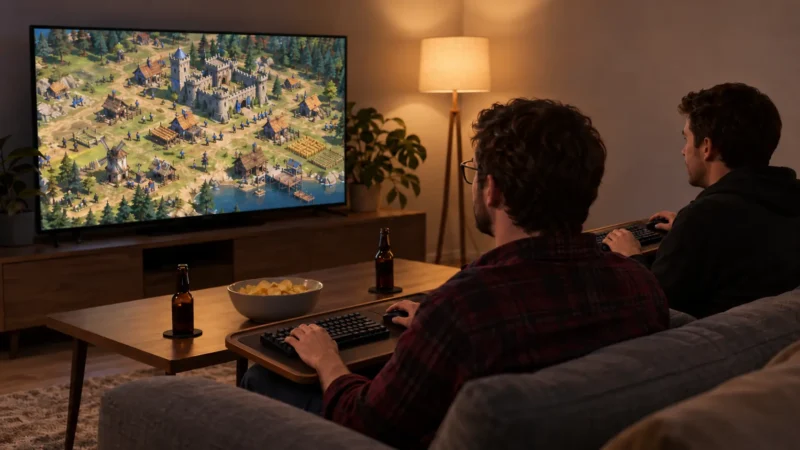
Most of the classic PC games we loved between 1995 and 2005 were built for one thing: a room full of beige towers, a tangle of network cables and someone’s parents yelling that it’s 3 a.m. That was LAN multiplayer, and many classics still only speak that language.
The good news is you don’t need to carry your PC to a friend’s house anymore. With the right tool, the game thinks you’re all on the same local network, even if one of you is in Chicago and the other in Berlin.
This guide covers the four methods that actually work in 2026, which one to pick for which game, and the small Windows fixes that save you an evening of troubleshooting.
Why Old LAN Games Don’t Just Work Online
Classic multiplayer games find each other in two ways. Older DOS titles like Doom, Duke Nukem 3D and Warcraft II use IPX, a network protocol that modern Windows doesn’t support at all. Late-90s and early-2000s games use TCP/IP, but their “LAN” mode only looks for players on your local network by broadcasting a signal. That signal never leaves your house.
So there are two problems to solve: IPX needs to be translated into something modern, and LAN broadcasts need a way to travel over the internet. Every method below solves one or both.
If you’re old enough, you probably solved this with Hamachi back in the day. It launched in 2004 and quickly became the go-to way to fake a LAN over the internet for everything from Warcraft III to Minecraft. It still exists, but the free tier is now capped at five devices, and there are better free options today.
Method 1: A Virtual LAN (Works With Almost Everything)
A virtual LAN tool gives every player a private network address and makes the game believe you’re all plugged into the same switch. It’s the modern version of what Hamachi did, and it’s the most universal option.
The three tools worth using:
| Tool | Free limit | Platforms | Best for |
|---|---|---|---|
| Radmin VPN | Free, no ads, no paid tier | Windows only | The easiest setup for a group of friends on Windows |
| ZeroTier | 10 devices, 1 network | Windows, macOS, Linux | Mixed setups, a stable network you reuse |
| Tailscale | Up to 6 users, unlimited devices | Windows, macOS, Linux | Small groups who want something that “just works” |
How to set it up (Radmin VPN example):
- Everyone downloads and installs Radmin VPN from the official site (radmin-vpn.com).
- One player clicks Network → Create Network, chooses a name and a password.
- The others click Network → Join Network and enter the same name and password.
- Once everyone shows a green dot, start the game and choose LAN or Local Network. Your friends’ games should appear just like they did in 2002.
If a game asks you to type an IP address instead of listing games automatically, use the host’s Radmin VPN IP (it starts with 26.), not their normal one.
Games that work well this way: Warcraft III, Diablo II, StarCraft, Age of Empires II (original), Unreal Tournament, Quake III Arena, Serious Sam, Counter-Strike 1.6, Call of Duty 1 and 2, and most other games from 1998 to 2005 with a LAN option.
Method 2: GameRanger (Easiest for Classic RTS)
GameRanger is a free multiplayer client that has supported old games for over two decades. Instead of creating a network yourself, you install GameRanger, add your friends and join a room. It detects your installed games and handles the connection.
It’s especially good for strategy classics. Its supported list includes Age of Empires and Age of Empires II with The Conquerors, Warcraft III and The Frozen Throne, StarCraft: Brood War, Diablo and Diablo II, Command & Conquer titles, Rise of Nations, Empire Earth, Stronghold, several Settlers games and Heroes of Might & Magic III.
How to use it:
- Create a free account at gameranger.com and install the client.
- Let it scan for your installed games (or point it to the game folder).
- One player hosts a room for the game, the others join, and GameRanger launches everyone into the same match.
The big advantage over a virtual LAN is the public lobby. If your friends can’t make it, you’ll often find strangers still playing the same 20-year-old game.
Method 3: DOSBox IPX (For DOS Classics)
For DOS-era games that use IPX, the answer is built into DOSBox. It wraps IPX traffic into modern UDP packets so it can travel over the internet.
If you haven’t set up DOSBox yet, start with our step-by-step guide to playing DOS games.
How to set it up:
- In your DOSBox config file, find the
[ipx]section and setipx=true(in DOSBox Staging it’sipx = on). - The host types
IPXNET STARTSERVERat the DOS prompt. - The other players type
IPXNET CONNECT <host IP>. - Start the game and choose the IPX network option.
The host needs to forward UDP port 213 on their router. The easier route is to combine this with Method 1: run Radmin VPN or ZeroTier first and connect to the host’s virtual IP. That way nobody has to touch their router.
Games that work this way: Doom and Doom II, Duke Nukem 3D, Warcraft II, Command & Conquer (DOS), Descent, Rise of the Triad and most other DOS multiplayer games.
Method 4: Community Clients for Specific Games
A few classics have fan communities that built dedicated online services, and for these they’re the best option by far.
Command & Conquer series – CnCNet. CnCNet runs online play for Command & Conquer, Red Alert, Tiberian Sun and Red Alert 2 / Yuri’s Revenge, with lobbies, ladders and compatibility fixes for modern Windows. For Red Alert 2 you need your own copy of the game.
Heroes of Might and Magic III – Horn of the Abyss. The HotA mod includes its own multiplayer lobby, where you can chat, host games and even use simultaneous turns. That feature alone would have saved us countless hours of waiting for a friend to finish his turn. You’ll need the Complete edition of Heroes 3 (the GOG version works). The Steam HD Edition isn’t compatible. If you’re excited about where the series is going next, read our take on the Heroes 3 remake.
StarCraft – free on Battle.net. Since patch 1.18 in 2017, the original StarCraft and Brood War are completely free, with online play and LAN fixes built in. There’s no reason to hunt for your old CD.
Which Method Should You Use?
| Game | Best method | Difficulty |
|---|---|---|
| Age of Empires II (original) | GameRanger | Easy |
| StarCraft / Brood War | Battle.net (free) or virtual LAN | Easy |
| Warcraft III | GameRanger or virtual LAN | Easy |
| Diablo II | Virtual LAN or GameRanger | Easy |
| Heroes of Might and Magic III | HotA lobby | Medium |
| Red Alert 2 / C&C | CnCNet | Easy |
| Doom, Duke Nukem 3D, Warcraft II | DOSBox IPX + virtual LAN | Medium |
| Unreal Tournament, Quake III, CS 1.6 | Virtual LAN or direct IP | Easy |
Troubleshooting: The Fixes That Solve 90% of Problems
Enable DirectPlay. Many 1997–2003 games, including the original Age of Empires II, use DirectPlay for multiplayer. Windows 10 and 11 disable it by default. Go to Control Panel → Programs → Turn Windows features on or off → Legacy Components and tick DirectPlay.
Allow the game through the firewall. The first time a game starts a LAN session, Windows asks for permission. Tick both private and public networks. If you missed the prompt, add the game’s .exe manually in Windows Defender Firewall.
Everyone needs the same version. Different patch versions are the most common reason a game won’t show up in the LAN list. Agree on one version (and one set of mods) before you start.
The game only sees your real network. Some games bind to the first network adapter they find. If your friends can’t see your game on a virtual LAN, disable other adapters you’re not using (for example, a VirtualBox adapter) and try again.
For general compatibility problems before you even get to multiplayer, check our guides on running old PC games on modern systems and running old game discs on Windows 11. If you’re still deciding where to buy the games, see Steam vs GOG for classic PC games.
The LAN Party Never Really Ended
The tools changed, the cables disappeared, and nobody has to carry a CRT monitor down three flights of stairs anymore. But the feeling of rushing a friend in Age of Empires II or wiping in Diablo II on Hell difficulty is exactly the same.
Pick one multiplayer game from our list, send your friends a link to this guide, and book an evening. It takes about ten minutes to set up, and it’ll feel like 2003 again.